Choosing the best drawing tablets can feel overwhelming, because the market now offers everything from budget pen tablets under fifty dollars to professional pen displays that cost more than a laptop. Whether you are a beginner buying your first tablet or an illustrator upgrading your studio, the right choice depends on how you draw, not just how much you spend.
A drawing tablet is the bridge between your hand and your software. A good one disappears under your stylus, so ideas flow straight onto the screen. A bad one fights you with lag, jittery lines, and a slippery surface that never feels like paper.
This guide explains the three tablet types, the specs that actually matter, and the best picks for every budget in 2026. By the end, you will know exactly which tablet belongs on your desk.
The Three Types of Drawing Tablets
Pen Tablets (No Screen)
A pen tablet is a flat drawing surface that connects to your computer. You draw on the tablet while watching your monitor, which feels strange for about a week and then becomes second nature. These tablets are the most affordable, the most durable, and the easiest on your posture, because your screen stays at eye level.
Pen Displays (Screen You Draw On)
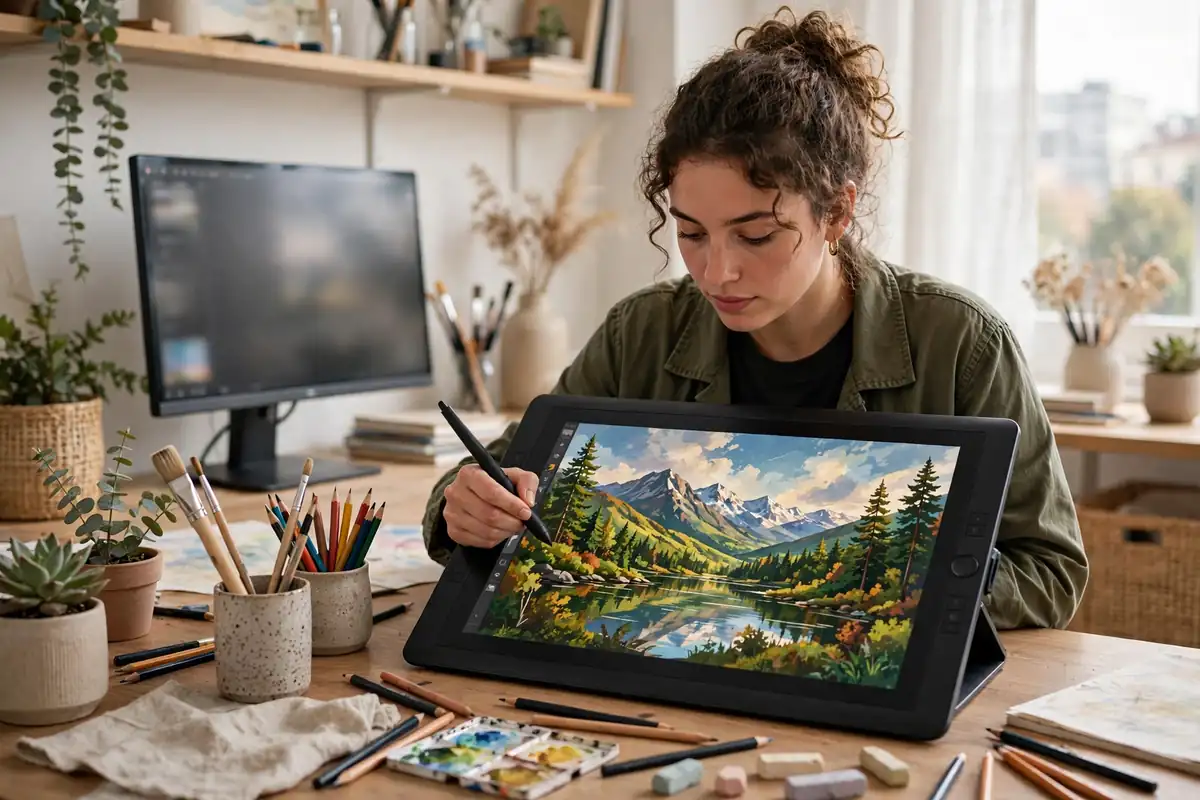
A pen display works like a monitor with a stylus. Drawing directly where your lines appear feels natural immediately, especially for artists moving from paper. However, pen displays cost more, need more desk space, and can strain your neck during long sessions unless you use a good stand.
Standalone Tablets
Standalone tablets, such as the iPad, run drawing apps on their own without a computer. They are portable, versatile, and perfect for sketching anywhere. Their app ecosystems keep growing, and many professionals now complete entire client projects on them.
Specs That Actually Matter
First, look at pressure sensitivity. Modern styluses offer 8,192 levels, which lets you move from whisper-light sketch lines to bold strokes by pressing harder. More levels help, but smooth pressure response matters more than the headline number.
Next, check tilt support and parallax. Tilt lets you shade with the side of the stylus, like a real pencil. Parallax is the gap between the pen tip and the line on screen; low parallax makes a pen display feel like paper, while high parallax feels like drawing through thick glass.
Also consider size. A drawing area around 10 by 6 inches suits most beginners, while illustrators who draw from the shoulder often prefer larger surfaces. If you are still deciding whether digital art fits you at all, our overview on how to start digital art explains the full beginner roadmap before you spend anything.
Finally, check the pen itself. Battery-free styluses never need charging and feel lighter in long sessions. Most quality brands now use this technology, so avoid older battery pens unless the deal is exceptional.
Best Drawing Tablets for Beginners
For most beginners, an affordable pen tablet is the smartest first purchase. Models like the Wacom Intuos and the XP-Pen Deco series deliver excellent pressure control, reliable drivers, and drawing apps bundled in the box. You can learn every digital fundamental on them for years.
If drawing on a screen sounds far more appealing, entry-level pen displays from XP-Pen and Huion, such as the Artist 12 and Kamvas 13 lines, have dropped to prices that were unthinkable five years ago. Their color accuracy is good enough for illustration, photo editing, and design work.
Pair your new tablet with structured practice from day one. Our Procreate drawing tutorial for beginners covers layers, brushes, and gestures in a friendly order, and most of those lessons transfer to free apps like Krita and MediBang Paint.
Best Drawing Tablets for Professionals
Professionals usually choose between large pen displays and premium standalone tablets. Wacom’s Cintiq Pro line remains the studio standard thanks to its color accuracy, etched-glass surface, and superb pens. Studios in animation and comics rely on them daily.
The iPad Pro with Apple Pencil dominates the portable professional category. Its screen is exceptional, and apps like Procreate, Clip Studio Paint, and Affinity Designer cover nearly every workflow. Freelancers who travel or work in coffee shops often pick it over a desk-bound display.
Whichever route you choose, protect your investment with a screen protector that adds paper-like texture, and back up your brush libraries. Pros also keep a traditional sketchbook nearby, because quick pencil studies, like those in our guide to how to draw faces, still plan compositions faster than any app.
Best Budget Drawing Tablets Under $100
Budget tablets have improved dramatically. The XP-Pen Deco 01, Huion Inspiroy series, and Wacom One pen tablet all deliver smooth lines, customizable shortcut buttons, and compatibility with Windows, Mac, and even Chromebooks. For students and hobbyists, these are honestly all the tablet most people need.
At this price, expect a pen tablet rather than a screen, and check that the drawing area is at least medium-sized. Tiny tablets force cramped wrist movements and make long lines hard to control.
Budget gear also pairs beautifully with free software, so your total setup cost stays low. Save the money you would have spent on hardware and invest time in fundamentals instead, such as the exercises in our how to draw anime tutorial, which builds line confidence quickly.
Drawing Tablets vs. iPad: Which Should You Buy?
This is the question every buyer asks in 2026. Choose a dedicated drawing tablet if you already own a good computer, want the largest drawing area for your money, or need desktop software like Photoshop with full plugin support. Choose an iPad if portability matters, if you also want a general-purpose tablet, or if you prefer an all-in-one device with no cables.
Remember that the iPad adds ongoing flexibility: note-taking, reference viewing, and client presentations all live on the same device. On the other hand, a $60 pen tablet plus a decent laptop often outdraws an iPad on sheer screen space per dollar.
There is no wrong answer, only a wrong fit for your habits. Honest self-knowledge beats spec sheets every time, which is also why experimenting with AI-assisted workflows, like those in our how to use Midjourney guide, can help you discover what kind of digital art you actually enjoy making.
Software to Pair With Your Tablet
Great hardware needs great software. Photoshop remains the industry standard for illustration and photo work, while Clip Studio Paint wins over comic and manga artists with its inking tools. Procreate dominates on iPad, and Krita offers a genuinely professional free option for desktop.
If design work is on your roadmap, vector apps open a second career path. The principles in our collection of graphic design tips for beginners apply whether you push pixels with a stylus or arrange layouts for clients.
Photographers benefit from tablets too. Precise pen control makes masking and retouching far easier than a mouse, and if you edit your own shots, our phone photography tips will help you capture better source images to edit in the first place. That pen control also transforms landscape edits, so pair it with our golden hour photography tips to capture sunsets that are truly worth retouching.
Accessories Worth Buying (and Skipping)
Buy a drawing glove to reduce friction and palm smudges; it costs almost nothing and helps immediately. A sturdy adjustable stand is equally worthwhile for pen displays, because wrist and neck comfort decide how long you can draw each day.
Replacement nibs are cheap insurance, since a worn nib scratches screens and ruins line quality. On the skip list: expensive carrying cases for a tablet that never leaves your desk, and premium stylus grips that mostly add bulk.
Eventually, many artists monetize their setup. If selling work interests you, our guide on how to sell art online explains the platforms and pricing strategies that turn tablet skills into income.
Common Buying Mistakes to Avoid
The biggest mistake is buying for the artist you wish you were instead of the artist you are. A huge professional display cannot fix skipped fundamentals, and it often gathers dust while a small tablet would have been used daily.
Another mistake is ignoring driver reputation. Beautiful hardware with unstable drivers causes lag, crashes, and lost work, so read recent user reviews for your exact operating system before ordering.
Finally, do not overlook your desk space and posture. Measure your desk, plan the cables, and think about where the tablet lives when you type. Comfort is a feature, even though it never appears on a spec sheet. Current style directions, like those rounded up in our look at modern abstract art trends, also remind us that tools serve the art, never the other way around.
Conclusion
The best drawing tablets in 2026 share three traits: a responsive battery-free pen, honest color or pressure performance, and a size that fits your real desk and habits. Beginners thrive on affordable pen tablets, professionals lean toward pen displays or the iPad Pro, and budget buyers have never had it better.
Pick the tablet that matches your workflow, pair it with solid software, and then draw every day. The tablet starts the journey, but your practice finishes it.