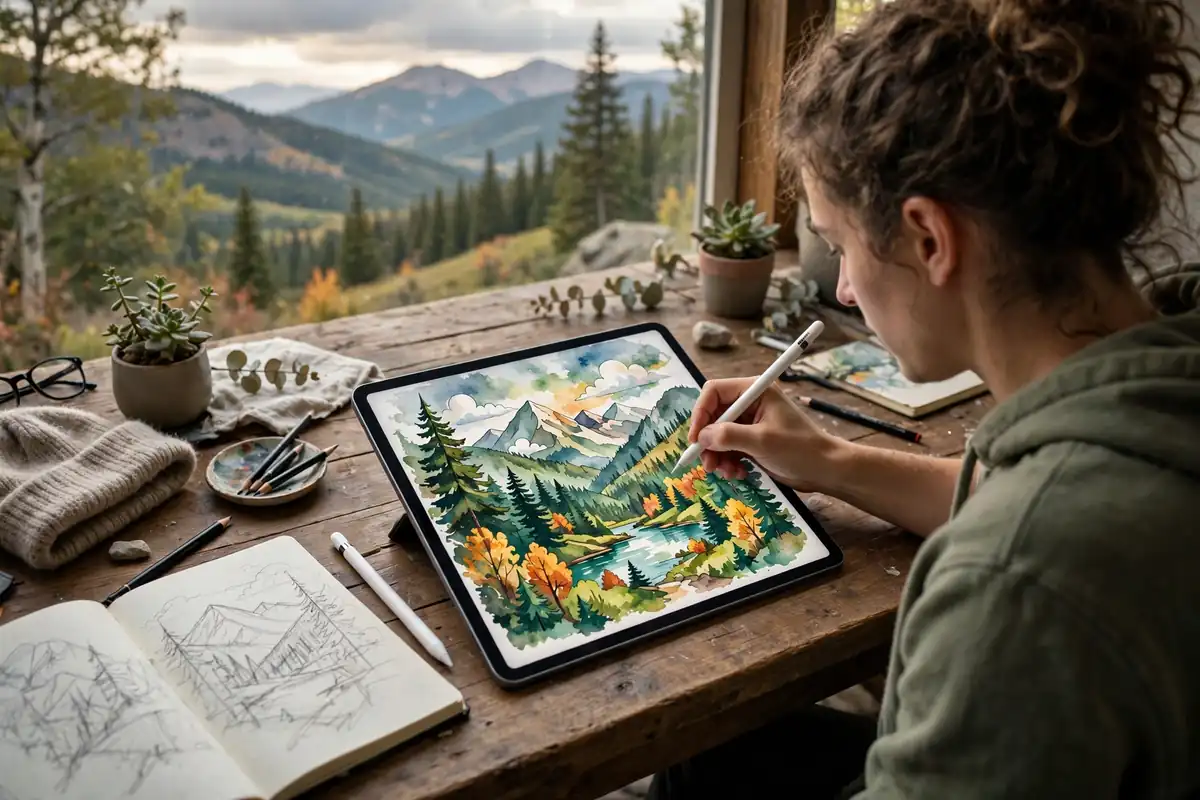
Procreate has quietly become the most popular digital art app in the world — and for good reason. For a one-time price cheaper than a single set of quality paintbrushes, you get a professional studio that fits in your bag: hundreds of brushes, infinite undo, layers, and no mess to clean up. Yet most beginners open the app, stare at the blank canvas and the wall of icons, and close it again.
This Procreate drawing tutorial is the guided first week you wish the app came with. You will learn the interface without overwhelm, the core tools that matter (and the ones to ignore), essential drawing techniques step by step, and a complete first illustration project. By the end, Procreate will feel like a sketchbook — not a spaceship cockpit.
Getting Set Up: Canvas, Interface, and First Settings
Open Procreate and tap the + in the top right of the gallery to create a canvas. For beginners, “Screen Size” is perfect — it matches your iPad’s resolution, keeps files light, and gives you plenty of layers. If you plan to print your work later, choose a custom canvas at 300 DPI (for example, 3300 x 2550 pixels for an 11 x 8.5 inch print).
The interface looks dense but you only need five areas to start:
- Brush library (top right, paintbrush icon): Hundreds of brushes organized in sets. Start with the “Sketching” and “Inking” sets — everything else can wait.
- Smudge and eraser (top right): The finger icon blends; the eraser removes. Both use the same brush engine, which is wonderfully intuitive.
- Layers panel (top right, stacked squares): Layers are transparent sheets stacked on top of each other. Draw your sketch on one layer, line art on another, colors below — so mistakes never destroy finished work.
- Color panel (top right, circle): Tap to open the color disc, palettes, and harmony tools. Double-tap the circle to switch quickly between your current and previous color.
- Actions menu (top left, wrench icon): Canvas settings, sharing, and video time-lapse live here.
Two gestures will save you constantly: two-finger tap to undo, three-finger tap to redo. Also enable “Drawing Guide” under Actions > Canvas for perspective grids and symmetry — incredibly useful for beginners. If you are completely new to making art on a screen, our complete beginner’s guide to digital art covers the broader foundations that pair perfectly with this tutorial.
Essential Procreate Techniques for Beginners
1. Brush control and pressure
Your Apple Pencil is pressure-sensitive: press harder for thicker, darker strokes, lighter for thin whispers. Spend fifteen minutes filling a page with lines — thick to thin, light to heavy, fast and slow. Most default brushes also respond to tilt. This single exercise improves your digital drawing more than any tutorial video, because every Procreate drawing tutorial ultimately comes down to confident strokes.
2. Working with layers
Think of layers as sheets of tracing paper. A simple workflow: Layer 1 for rough sketch, Layer 2 (set to low opacity on top) for clean line art, layers below for flat colors, and a top layer for highlights and details. Name your layers — “sketch,” “lines,” “color” — because a file with twenty “Layer 47″s becomes unmanageable fast. Learn two layer superpowers early: Clipping Masks (paint only on top of the layer below — perfect for shading without going outside the lines) and Alpha Lock (paint only on existing pixels of the current layer).
3. QuickShape: perfect shapes instantly
Draw a rough circle, square, or line and hold your pencil down at the end — Procreate snaps it into a perfect shape. This “QuickShape” feature is a beginner’s best friend for heads, bodies, frames, and composition guides. Tap “Edit Shape” at the top to fine-tune it.
4. Selection and transform
The S-shaped Selection tool lets you lasso any part of your drawing, then move, resize, rotate, or flip it with the Transform arrow. Drew one eye perfectly but the other is crooked? Select, copy, flip horizontally, and place it. Professionals use this constantly — it is not cheating, it is workflow.
5. Blending with the smudge tool
The smudge tool (finger icon) pushes pixels around like a finger on wet paint. Use a soft brush at low opacity for smooth skin tones and gradients, or a textured brush for painterly effects. Do not over-blend — a few confident smudges beat a hundred muddy ones.
6. Masks and erasing non-destructively
Instead of erasing directly, add a Layer Mask (tap the layer, choose Mask). Painting black on the mask hides parts of the layer; painting white brings them back. Nothing is ever truly destroyed, which makes experimenting fearless.
7. Color palettes and harmony
Tap the color circle, then “Palettes,” to save custom color sets. Even better: use the “Harmony” tab to generate complementary or analogous color schemes automatically. Beginners who pick colors by harmony instead of at random see an instant jump in how professional their work looks — the same color principles graphic designers rely on apply directly to illustration.
Your First Project: Draw a Cozy Coffee Cup Illustration
Theory is nice; a finished piece is better. This beginner-friendly project takes about 45 minutes and uses every technique above.
Step 1: Sketch (10 minutes)
Create a new layer. With the 6B Pencil from the Sketching set, roughly draw a coffee cup: use QuickShape (draw and hold) for the cup’s ellipse rim and body, then freehand the handle and a little steam swirl. Keep it loose — this layer is just scaffolding.
Step 2: Clean line art (10 minutes)
Add a new layer, reduce the sketch layer’s opacity to 30%, and trace clean lines with the Studio Pen from the Inking set. Vary your pressure for lively thick-and-thin lines. Hide the sketch layer when done.
Step 3: Flat colors (10 minutes)
Create a layer below the line art. Drag colors from the color circle directly onto enclosed areas to fill them (adjust the ColorDrop threshold by holding and sliding). Pick a warm palette — cream cup, terracotta saucer, caramel coffee.
Step 4: Shading and highlights (10 minutes)
Clip a new layer to the color layer (clipping mask), pick a slightly darker warm tone, and paint soft shadows on one side with a low-opacity airbrush. Alpha-lock the color layer and add a lighter rim of highlight on the opposite side. Add a tiny white sparkle on the cup’s edge for that glossy ceramic look.
Step 5: Background and export (5 minutes)
Add a background layer at the very bottom — a soft warm gradient made with the smudge tool. Then export: Actions > Share > PNG for posting online, or PDF/JPEG for print. Congratulations — you have completed your first Procreate illustration.
7 Mistakes New Procreate Users Make
- Too few layers: Drawing everything on one layer means one mistake ruins everything. Fix: separate sketch, lines, colors, shading, and details onto their own layers from the start.
- Maximum canvas, minimum layers: Huge canvases eat your layer budget. Fix: work at Screen Size or moderate dimensions until you need print resolution.
- Ignoring reference images: Drawing purely from imagination produces stiff, wrong-looking results. Fix: import reference photos onto a canvas layer (Actions > Insert a photo) and study them — every professional does this.
- Over-smoothing everything: Excessive smudging turns drawings into plastic. Fix: leave some texture; use textured brushes for a hand-drawn feel.
- Default brush tunnel vision: Many beginners use one brush for everything. Fix: try the Painting set’s brushes — they mimic real oil painting techniques and instantly make digital work feel more organic.
- Forgetting to save versions: Procreate autosaves, but it cannot undo yesterday’s bad decision. Fix: duplicate your canvas (swipe left in the gallery) before major changes.
- Skipping traditional fundamentals: The app cannot teach you drawing itself. Fix: study composition and value the old-fashioned way — visiting an art exhibition and sketching what you see trains your eye faster than any filter.
5 Free Brushes and Features Worth Exploring Next
Once the basics feel natural, these built-in features level up your work without spending a cent:
- Drawing Assist and Symmetry: Actions > Canvas > Drawing Guide, then Symmetry — draw one side and Procreate mirrors it. Perfect for faces, mandalas, and logos.
- StreamLine: In brush settings, raising StreamLine smooths wobbly strokes automatically — a lifesaver for clean line art.
- Reference Companion: Keep a reference image pinned on screen while you draw (Actions > Canvas > Reference). No more switching apps.
- Time-lapse Replay: Procreate records your entire process. Export the video (Actions > Share > Time-lapse video) — process videos are hugely popular on social media and great for spotting your own bad habits.
- Text and shapes for design work: Add typography and vector-like shapes for posters and social graphics, bridging illustration and design.
As your style develops, look outward for inspiration. Study the abstract art styles dominating American galleries for bold composition ideas, or browse unusual genres like infrared fine-art photography for surreal color palettes you would never invent on your own.
From Screen to Wall: Printing and Sharing Your Art
Digital art does not have to stay digital. Export at 300 DPI and upload to a print-on-demand service for posters, or print at home for personal pieces — your own illustrations make wonderful bedroom wall art, and a series of prints can anchor a living room makeover with genuinely personal style.
Sharing online accelerates learning too. Post your time-lapse videos and finished pieces, ask for critique in art communities, and do draw-this-in-your-style challenges. The feedback loop of public practice is powerful — and many illustrators build freelance careers directly from a consistent posting habit. Even as digital tools evolve, the patience of traditional handmade craftsmanship remains the deeper skill: the app is just the newest brush.
Conclusion: Your Sketchbook Is Now Infinite
This Procreate drawing tutorial covered the complete beginner arc: setting up your canvas, the five interface areas that matter, seven core techniques from brush pressure to clipping masks, a finished coffee-cup project, and the mistakes to avoid. That is genuinely enough to start making art you are proud of.
The beautiful thing about Procreate is that experimenting costs nothing — no wasted paint, no ruined paper, infinite undo. So experiment aggressively. Fill a canvas with terrible drawings, duplicate it, and fill another. Somewhere around canvas number twenty, you will look back at number one and laugh. That laughter is the sound of getting good.
For a traditional-media companion to these digital skills, see our guide to drawing faces step by step with pencil and paper.